How To Fix PWA Installation Issues In Hyper PWA
Getting your Progressive Web App (PWA) to prompt users for installation relies on a combination of browser rules, security parameters, and correct file loading. If your installation button or custom banner is not appearing on your website, follow this step-by-step troubleshooting guide.
🛠️ Step 1: Diagnose Issues in Your Browser
Before editing settings, check your browser’s diagnostic tools to identify the exact cause:
- Open your website in Google Chrome on a desktop computer.
- Right-click anywhere on the page and select Inspect to open DevTools.
- Select the Application tab from the top menu.
- Click on Manifest and Service Workers in the left sidebar to look for warning badges.
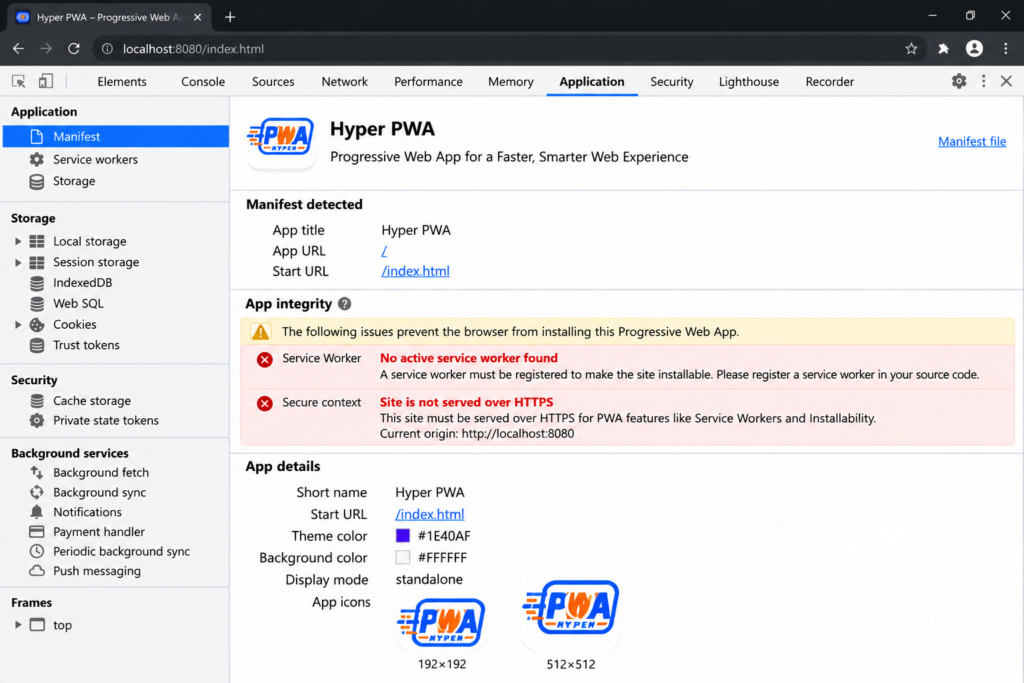
Common diagnostic messages include:
- No active service worker found (Service worker is blocked).
- Site is not served over HTTPS (Security requirement failed).
- Manifest does not contain a suitable icon (Icon sizes are incorrect).
🔒 Step 2: Verify Your HTTPS Setup (SSL Certificate)
Browsers will block PWA installation on any site loaded over a regular, unencrypted connection (http://).
- Verify that your site URL begins with
https://. - Test your domain on SSL checker tools to ensure there are no mixed content warnings (where the site is HTTPS but images or scripts are loading via HTTP).
- If you have mixed content issues, go to Hyper PWA > Settings > General and toggle Fix Mixed Content to ON to force asset links to load securely.
⚡ Step 3: Resolve Caching & Minification Plugin Conflicts
WordPress optimization and cache plugins (e.g., WP Rocket, LiteSpeed Cache, Autoptimize, W3 Total Cache) often group, defer, or compress JavaScript files. This can break the registration of your PWA Service Worker (sw.js).
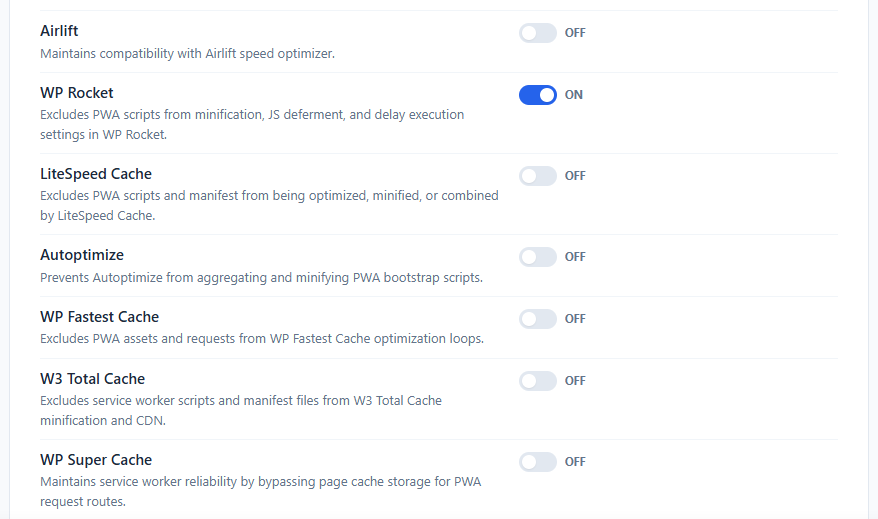
How to Fix Cache Conflicts:
- Go to Hyper PWA > Settings and open the Compatibility tab.
- Toggle your active cache plugin compatibility switch to ON. This automatically prevents optimization plugins from minifying or deferring
sw.jsandmanifest.json. - Clear your caching plugin’s cache entirely (click “Purge All” or “Clear Cache” in your WP admin bar).
- Clear your browser data and reload your website.
📐 Step 4: Ensure Manifest & Icon Requirements Are Met
The web app manifest requires specific dimensions for your application icons to show the install button:
- PWA Icon Specifications:
- You must upload a square icon in PNG format.
- The minimum required size is 192×192 pixels.
- A high-resolution 512×512 pixels icon is required for the splash screen.
- Check your manifest by navigating to
https://yourdomain.com/hyper-pwa-manifest.json in your browser. Verify that the icons list contains both sizes and displays the correct URLs.
📱 Step 5: Check Browser and OS Compatibility
Not all browsers support PWA installations in the same way:
- iOS & iPadOS (Apple Devices):
- Users must use the Safari browser. Custom install banners or browser install prompts are not allowed on iOS Chrome/Firefox.
- Instruct iOS users to tap the Share button and select Add to Home Screen.
- Firefox (Desktop):
- Desktop Firefox does not support PWA installation on Windows/macOS.
- Incognito/Private Browsing:
- Install prompts are completely disabled by browsers in private tabs. Ensure you are testing in a standard browsing tab.