
How To Create App Shortcuts In Hyper PWA
App Shortcuts is a premium feature of Hyper PWA that allows site administrators to add quick-access shortcuts to their Progressive Web App. When a user long-presses (on mobile) or right-clicks (on desktop) the installed PWA icon, a context menu appears showing custom shortcuts — similar to native app shortcuts on Android and iOS home screens.
This feature helps users jump straight to key sections of your app (e.g., “Cart”, “Orders”, “Support”) without having to open the app and navigate manually, improving engagement and user experience.
Prerequisites
Before you can use the App Shortcuts feature, you must:
- Upgrade to the Hyper PWA Premium version.
- Install and activate the Hyper PWA Premium plugin/package on your site.
- Ensure your site is running as an installable PWA (valid manifest, HTTPS, service worker registered).
⚠️ Note: App Shortcuts is a Premium-only feature. If you are using the Free version of Hyper PWA, this option will not be available in the settings panel. You must upgrade to Premium to unlock it.
Where to Find This Feature
Once Premium is active, navigate to:
Hyper PWA → Premium Features → App Shortcuts
This will open the App Shortcuts configuration screen inside your admin panel.
Configuring App Shortcuts
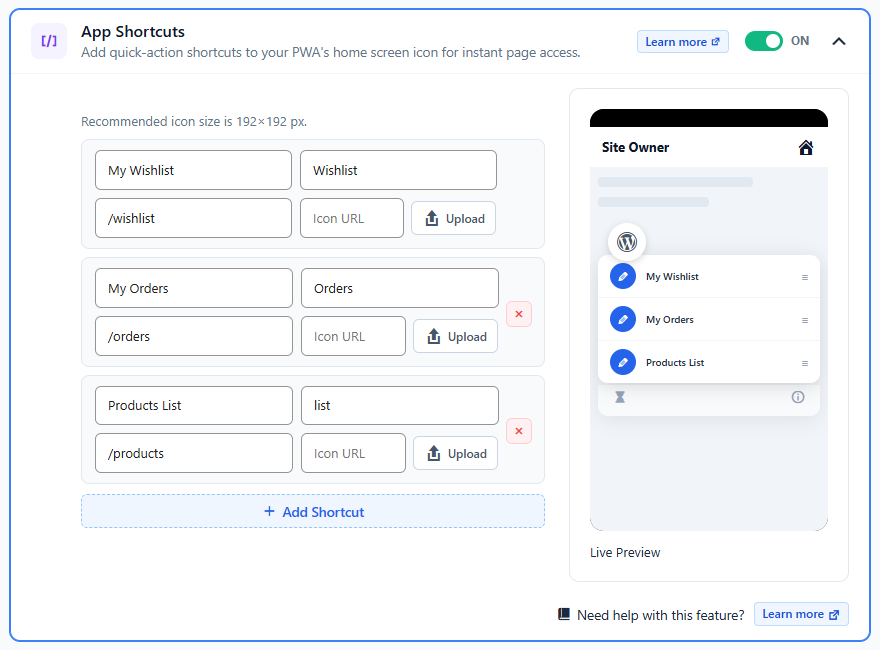
The App Shortcuts panel uses a repeater field, meaning you can add multiple shortcuts, each with its own set of fields. You can add, reorder, or remove shortcut entries as needed.
Fields Available for Each Shortcut
| Field | Description |
|---|---|
| Name | The full, descriptive label for the shortcut. This is typically shown as the primary text in the shortcut menu (e.g., “My Orders”). |
| Shortname | A shorter version of the name, used when space is limited on smaller screens (e.g., “Orders”). |
| Path | The relative URL path the shortcut should open when tapped (e.g., /orders, /cart, /account). This should be a valid route within your PWA. |
| Icon URL | The URL of the icon image representing the shortcut. Recommended size is typically 96x96px or larger (square, PNG format) for best display across devices. |
Steps to Add a Shortcut
- Go to Hyper PWA → Premium Features → App Shortcuts.
- Click Add New / Add Shortcut (repeater “+” button).
- Fill in the fields:
- Name — e.g.,
My Wishlist - Shortname — e.g.,
Wishlist - Path — e.g.,
/wishlist - Icon URL — paste a direct image URL or upload/select an icon.
- Name — e.g.,
- A live preview of the shortcut (icon + name) will appear directly on the admin panel as you fill in the details.
- Repeat the steps above to add additional shortcuts.
- Click Save Changes to publish the shortcuts to your PWA manifest.
💡 Tip: Keep the number of shortcuts between 3–5 for the best user experience, as most operating systems limit the number of shortcuts displayed at once.
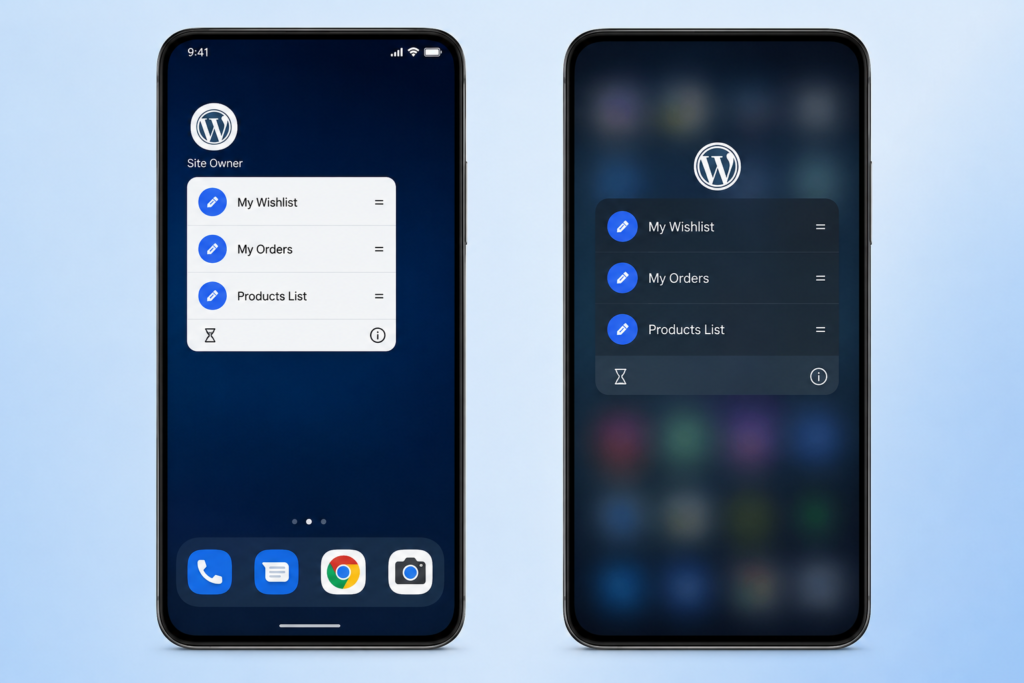
Frontend Result (End-User View)
Once saved, the shortcuts are added to the PWA’s web app manifest (manifest.json) under the shortcuts array. Users who have installed the PWA on their device can access these shortcuts by long-pressing (mobile) or right-clicking (desktop) the app icon.
Frequently Asked Questions
Q: Why don’t I see the App Shortcuts option in my admin panel? A: This feature is only available in the Premium version of Hyper PWA. Make sure you’ve purchased and activated Premium.
Q: How many shortcuts can I add? A: There is no hard restriction in the plugin, but operating systems (Android/iOS/Desktop) typically display only 4–5 shortcuts. Adding more may result in some being hidden.
Q: My shortcut icon isn’t showing correctly. What should I check? A: Ensure the Icon URL is publicly accessible, uses HTTPS, and is a square image (recommended 96x96px or 192x192px).
Q: Do I need to reinstall the PWA after adding shortcuts? A: In most cases, users may need to reinstall or update the PWA on their device for new shortcuts to appear, since shortcuts are read from the manifest at install time.