
How to Configure and Display Connectivity Notices in Hyper PWA
Hyper PWA includes a Connectivity Notices feature that helps you keep users informed about their internet connection status while they are browsing your website or using your installed PWA.
Modern browsers provide basic offline and online indicators, but they are generic and controlled by the browser. With Hyper PWA Connectivity Notices, you can provide a branded, website-specific experience by showing your own custom messages, colors, and guidance to users when their connection changes.
This is especially useful for PWAs because users may continue browsing previously cached content even when they lose their internet connection.
For example, when a user goes offline while reading an article, you can inform them:
“You are currently offline. You can continue reading this page. New content will be available once you reconnect.”
This gives users confidence that your app is still working instead of assuming something is broken.
You can configure this feature from:
Hyper PWA → Core Features → Connectivity Notices
Why Use Hyper PWA Connectivity Notices?
Browsers may show their own offline indicators, but they do not understand your website experience.
Hyper PWA Connectivity Notices allow you to:
- Display custom offline and online messages.
- Maintain your brand identity with custom colors.
- Explain what users can still do while offline.
- Provide a smoother PWA-like app experience.
- Reduce confusion when internet connectivity changes.
- Guide users instead of showing generic browser messages.
For example:
Browser notification:
“No Internet Connection”
Your custom Hyper PWA notification:
“You are offline. Continue reading this article. Your latest updates will sync when you are back online.”
The second approach creates a much better user experience because it communicates what is happening and what users can do next.
Connectivity Notices Configuration
The Connectivity Notices accordion contains two notification states:
- Offline Notice
- Online Notice
Each state can be customized separately according to your website requirements.
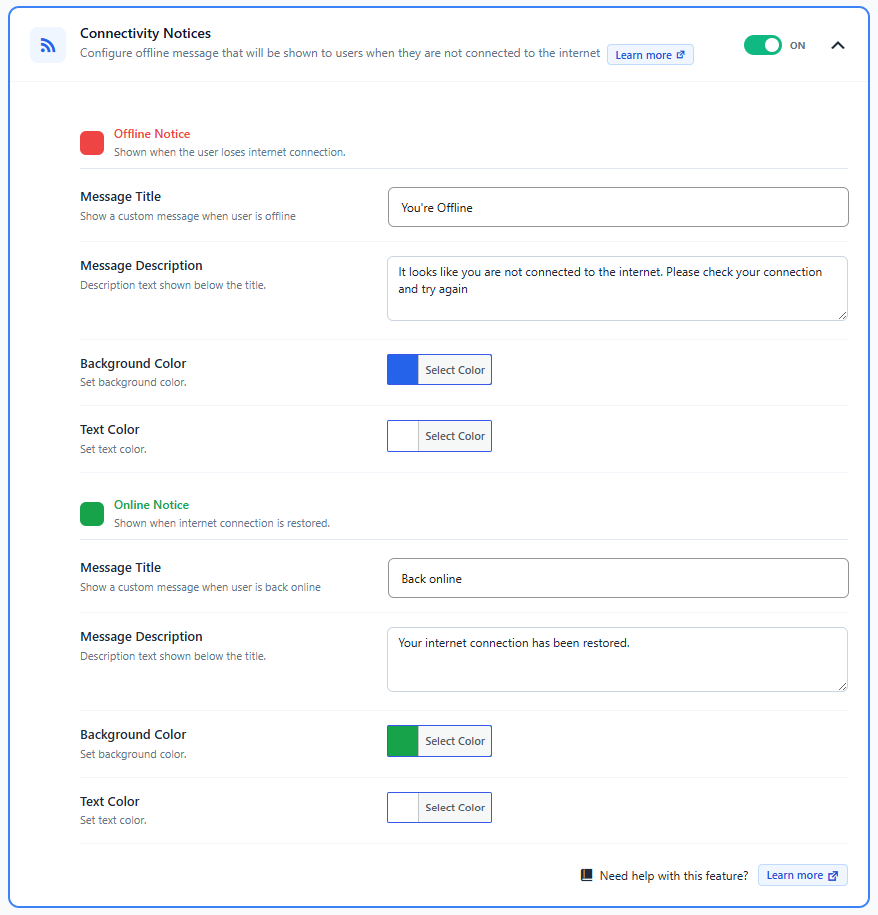
1. Offline Notice
The Offline Notice appears when the user’s internet connection is interrupted.
This allows you to inform users that they are offline while letting them know they can continue interacting with available cached content.
This is particularly useful for:
- Blog websites where users can continue reading cached articles.
- Documentation websites where users can access previously loaded pages.
- News websites where users can browse saved content.
- Web apps built with PWA functionality.
Available Settings
Message Title
Set the main title displayed in the offline notification.
Example:
You are offline
Message Description
Add a helpful message explaining the offline experience.
Example:
Your internet connection is unavailable. You can continue reading cached content and changes will sync when you are back online.
Background Color
Customize the notification background color.
You can choose a color that matches your website branding or represents an offline state.
Text Color
Customize the text color to ensure the notification remains readable.
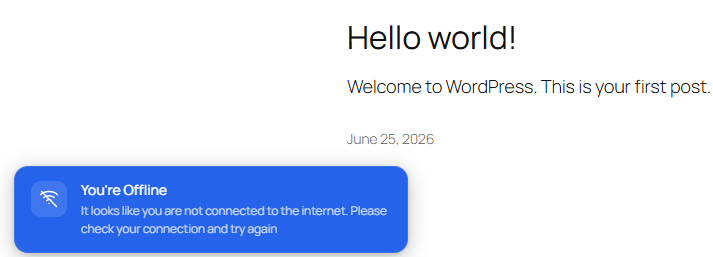
Frontend Offline Notice
When the user loses internet connectivity, Hyper PWA displays the configured Offline Notice.
The notification appears instantly, remains visible for 3 seconds, and automatically disappears.
2. Online Notice
The Online Notice appears when the user’s internet connection is restored.
It confirms that the connection is available again and lets users know they can continue using the website normally.
This is useful because users may not always notice when their connection is restored.
Available Settings
Message Title
Set the title for the online notification.
Example:
You are back online
Message Description
Add a message to inform users that the connection has been restored.
Example:
Your internet connection has been restored. You can continue browsing normally.
Background Color
Customize the notification background color.
Text Color
Customize the notification text color for better visibility.
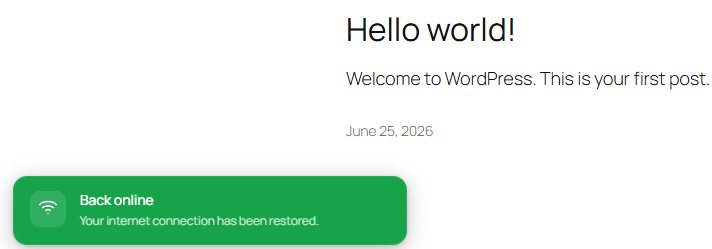
Frontend Online Notice
When the user’s internet connection returns, Hyper PWA displays the Online Notice.
The notification appears for 3 seconds and automatically disappears.
How Connectivity Notices Work
Hyper PWA automatically monitors the browser’s network connection status.
The flow works as follows:
- A visitor opens your website or installed PWA.
- Hyper PWA monitors connection changes.
- If the internet connection is lost:
- The Offline Notice is displayed.
- Users can continue using available cached content.
- When the connection is restored:
- The Online Notice is displayed.
- Users are informed that normal browsing can continue.
- The notice automatically disappears after 3 seconds.
No manual action is required from users.
Recommended Usage Examples
Blog / Content Websites
Offline message:
You are offline.
Continue reading available articles. New content will load when you reconnect.
Documentation Websites
Offline message:
You are offline.
You can continue viewing previously loaded documentation pages.
WooCommerce / Business Websites
Offline message:
You are offline.
Some features may be unavailable until your connection is restored.
Best Practices
For the best user experience:
- Keep messages short and easy to understand.
- Explain what users can still do while offline.
- Avoid only showing “No Internet Connection” messages.
- Use your brand colors to create a consistent experience.
- Provide reassurance that cached content is still available.
Connectivity Notices transform a basic offline state into a reliable app-like experience, helping users understand that your PWA is still usable even when the internet connection is temporarily unavailable.