
How to Use the Install Button Shortcode in Hyper PWA
The Install Button Shortcode is a free feature in Hyper PWA that lets you place a custom “Install App” button anywhere on your WordPress website, inside blog posts, headers, sidebars, or widget layouts.
When clicked on supported mobile devices or desktop browsers, it triggers the application installation prompt immediately.
⚙️ How to Customize Your Install Button
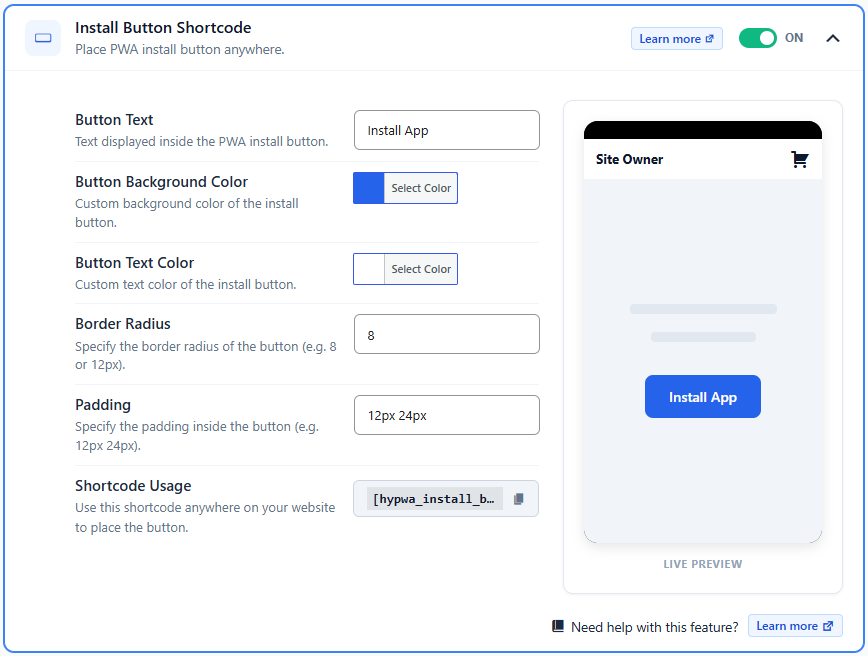
To configure your button’s look and feel, log in to your WordPress Dashboard, navigate to Hyper PWA > Core Features, and open the Install Button Shortcode accordion.
Step 1: Enable the Install Button Feature
Turn the toggle switch to ON. This activates the shortcode functionality on your site.
Step 2: Style the Button UI
You can customize the button appearance to match your site’s branding using the simple styling options:
- Button Text: Change the text displayed inside the button (e.g., “Install Our App” or “Get the Mobile App”).
- Button Background Color: Pick a custom background color using the color selector.
- Button Text Color: Choose the color of the text.
- Border Radius: Set how rounded the corners should be (e.g.,
8for slightly rounded, or25for a pill-shaped button). - Padding: Adjust the spacing around the text inside the button (e.g.,
12px 24px).
Step 3: Copy Your Custom Shortcode
Under the settings form, you will see a box containing the shortcode code:
Simply click on the shortcode box to automatically copy it to your clipboard.
📋 Placing the Button on Your Site
You can place your copied shortcode in several ways depending on your editor:
Option A: Block Editor (Gutenberg)
- Edit any Page or Post.
- Click the + icon to add a new block.
- Search for Shortcode and select it.
- Paste
inside the box. - Publish/Update your page.
Option B: Page Builders (Elementor, Divi, Beaver Builder)
- Add a Shortcode or Text Editor widget to your layout.
- Paste
in the content block. - Save your changes.
📱 How it Looks on the Frontend
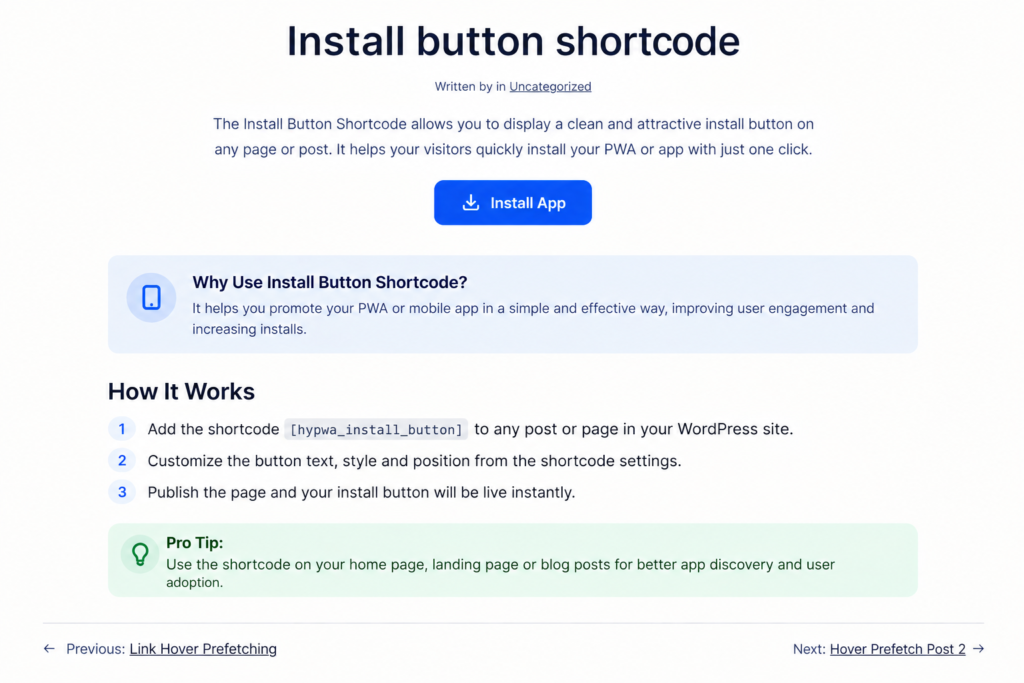
When a user visits your article page, the shortcode will render as a beautiful, fully branded button inside the post layout:
💡 Common Questions
- Why is the button hidden on my browser?
The install button dynamically hides itself if:- The user has already installed the app on their device.
- The browser or device does not support PWA installations (e.g., non-Safari browsers on iOS).
- Do I need code to style it?
No code is required. All styles (colors, padding, roundness) are updated automatically through the dashboard.