Hyper PWA Advanced Settings
The Advanced tab controls low‑level behavior of how your Progressive Web App (PWA) is served, cached, and installed. These settings are intended for site owners who need more control than the basic setup provides, for example, sites with restrictive hosting environments, sites that need forced cache-busting after updates, or sites that want a custom install button instead of the default browser prompt.
Settings Reference
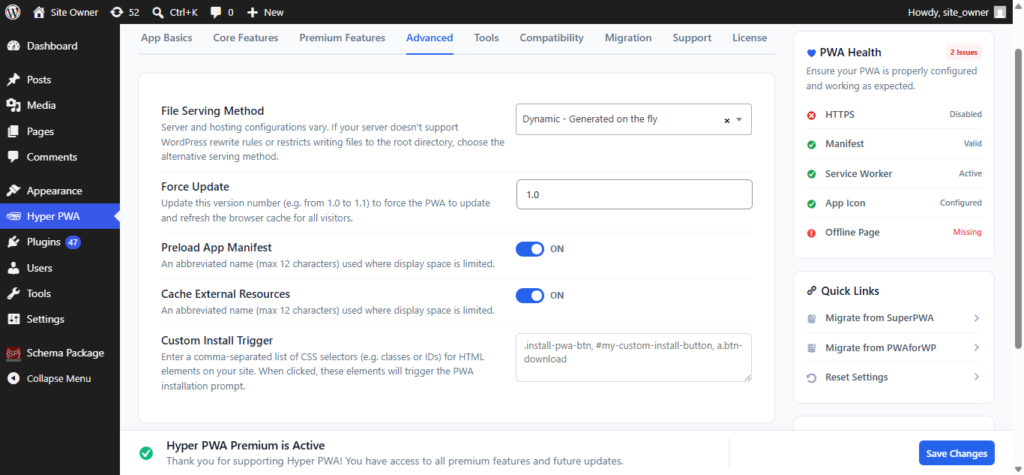
1. File Serving Method
Controls how the PWA’s core files (manifest, service worker, etc.) are delivered to visitors’ browsers.
- Dynamic – Generated on the fly: Files are generated by WordPress at request time rather than written to disk. Use this if:
- Your hosting restricts write access to the site’s root directory.
- Static (alternative option, typically available in the dropdown): Files are physically written to the root directory. This is usually faster but requires write permissions.
When to change it: If you notice the manifest or service worker isn’t loading correctly (404 errors, stale files), and your host has file-permission restrictions, switch to Dynamic mode.
2. Force Update
A manual version counter for your PWA. Incrementing this value (e.g., 1.0 → 1.1) forces all visitors’ browsers to:
- Detect that the service worker has changed.
- Discard the previously cached version.
- Fetch and install the latest assets.
When to use it: After making significant changes to your site’s design, cached pages, or offline behavior, bump this number so returning visitors aren’t stuck viewing outdated cached content.
3. Preload App Manifest
When enabled, the manifest file is preloaded early in the page lifecycle, which can improve how quickly browsers recognize install eligibility and reduce delay before the “Add to Home Screen” prompt becomes available.
4. Cache External Resources
When enabled, the service worker will also cache assets loaded from external domains (CDNs, third-party fonts, embedded scripts, etc.), not just resources hosted on your own site. This improves offline reliability for pages that depend on external resources, at the cost of slightly larger cache storage.
5. Custom Install Trigger
.install-pwa-btn, #my-custom-install-button, a.btn-download
Lets you bind the native PWA install prompt to your own custom buttons or links instead of relying solely on the browser’s default install banner.
How it works:
- Enter any combination of CSS class selectors (
.install-pwa-btn), ID selectors (#my-custom-install-button), or element/attribute selectors (a.btn-download), separated by commas. - When a visitor clicks any HTML element matching one of these selectors, Hyper PWA intercepts the click and triggers the install prompt (if the browser supports it and the PWA hasn’t already been installed).
Use case example: You have a “Download Our App” button in your site’s header with the class install-pwa-btn. Adding that selector here means clicking that button opens the install prompt, giving you full control over button styling and placement rather than depending on a generic browser banner.