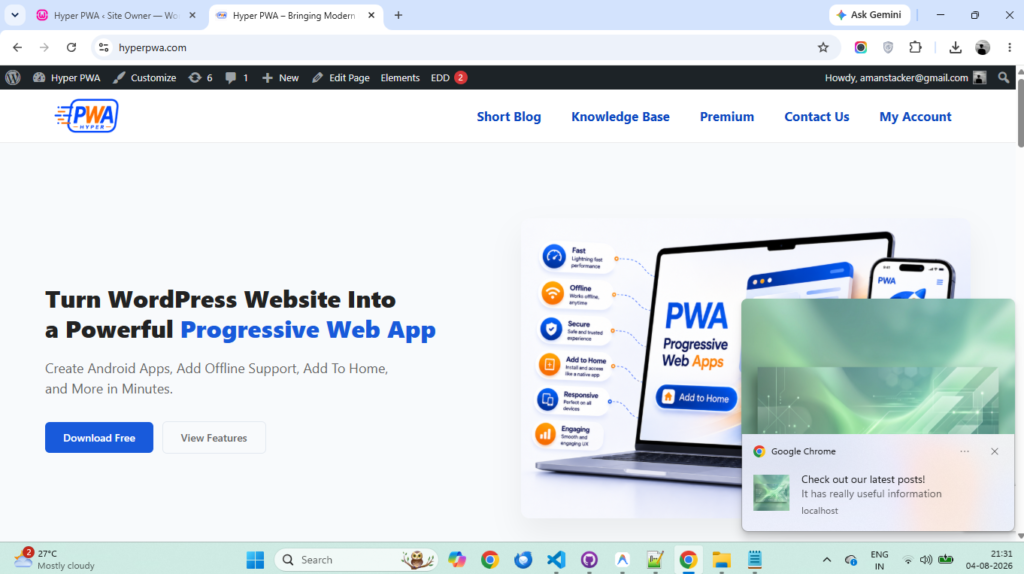
How to Send Push Notifications in Hyper PWA
Path: Hyper PWA → Core Features → Push Notifications
Hyper PWA integrates with HyperPush (hyperpushx.com) to let you send web push notifications to your site’s subscribers directly from your WordPress dashboard. This guide walks you through the full setup — from getting your API key to broadcasting your first notification.
Overview
Sending push notifications in Hyper PWA involves five steps:
- Get an API key from hyperpushx.com
- Activate the API key inside the Hyper PWA Push Notifications accordion
- Confirm subscribers can opt in on your site’s front end
- Send a notification — from Hyper PWA or from the HyperPush dashboard
- Subscribers receive the notification on their device/browser
Step 1: Get Your API Key from hyperpushx.com
Before you can connect Hyper PWA to HyperPush, you need an account and an API key.
- Go to hyperpushx.com and sign up for a free account.
- Once logged in, locate your API Key in your HyperPush account dashboard.
- Copy the API key — you’ll need it in the next step.
💡 Tip: A free HyperPush account gives you basic push capabilities. If you need higher limits, you can upgrade to a premium account later.
Step 2: Activate the API Key in Hyper PWA
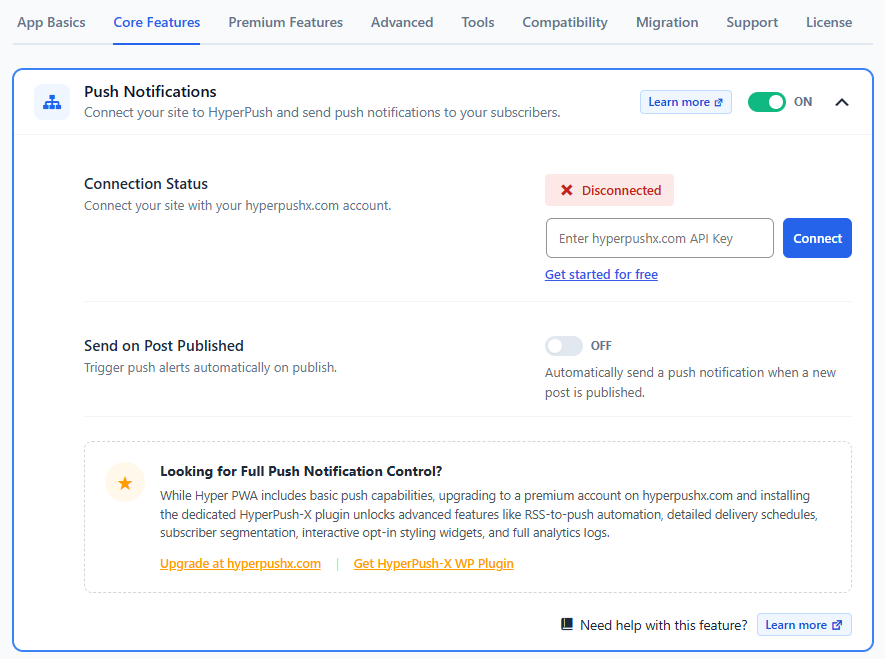
- In your WordPress admin dashboard, go to Hyper PWA → Core Features.
- Expand the Push Notifications accordion and make sure the toggle at the top right is switched ON.
- Under Connection Status, you’ll see the site is currently Disconnected.
- Paste the API key you copied from hyperpushx.com into the “Enter hyperpushx.com API Key” field.
- Click Connect.
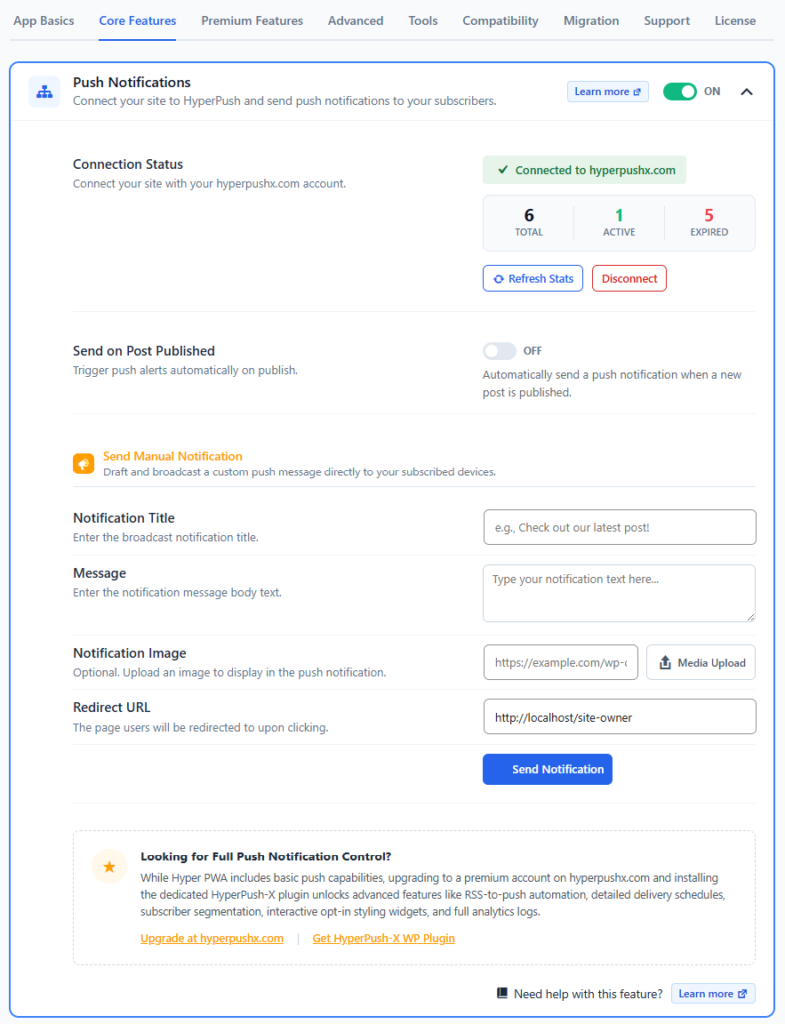
Once connected successfully, the panel will update to show:
- A green ✓ Connected to hyperpushx.com status
- Subscriber stats: Total, Active, and Expired
- Refresh Stats and Disconnect buttons
✅ You only need to do this once per site. As long as the connection stays active, you won’t need to re-enter your API key.
Step 3: Confirm the Front-End Opt-In Works
Once your API key is connected, Hyper PWA automatically shows a push notification opt-in popup on your site’s front end, prompting visitors to subscribe.
- Visit your live site in a browser (the same site where you activated the API key).
- You should see a popup similar to “Get Latest Updates!” asking visitors to allow notifications, with Allow and No Thanks options.
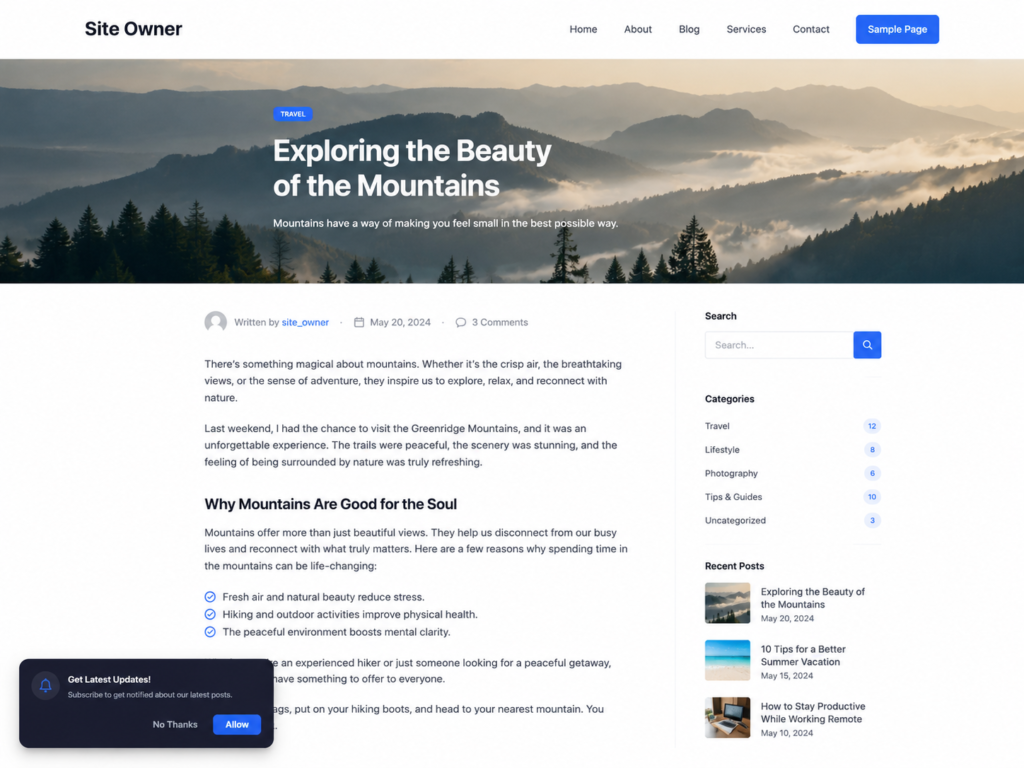
- When a visitor clicks Allow, their browser registers as a subscriber, and their browser’s native notification permission is granted.
⚠️ Note: If visitors click “No Thanks” or block notifications, they won’t be counted as active subscribers and won’t receive future notifications until they opt in again through their browser settings.
Step 4: Send a Notification
You can send push notifications in two ways: directly from Hyper PWA, or from your HyperPush (hyperpushx.com) dashboard.
Option A: Send from Hyper PWA
- Go to Hyper PWA → Core Features → Push Notifications.
- Scroll to the Send Manual Notification section.
- Fill in the notification details:
- Notification Title — e.g., “Check out our latest post!”
- Message — the body text of your notification
- Notification Image (optional) — paste an image URL or use Media Upload
- Redirect URL — the page subscribers land on when they click the notification
- Click Send Notification.
Option B: Send from hyperpushx.com
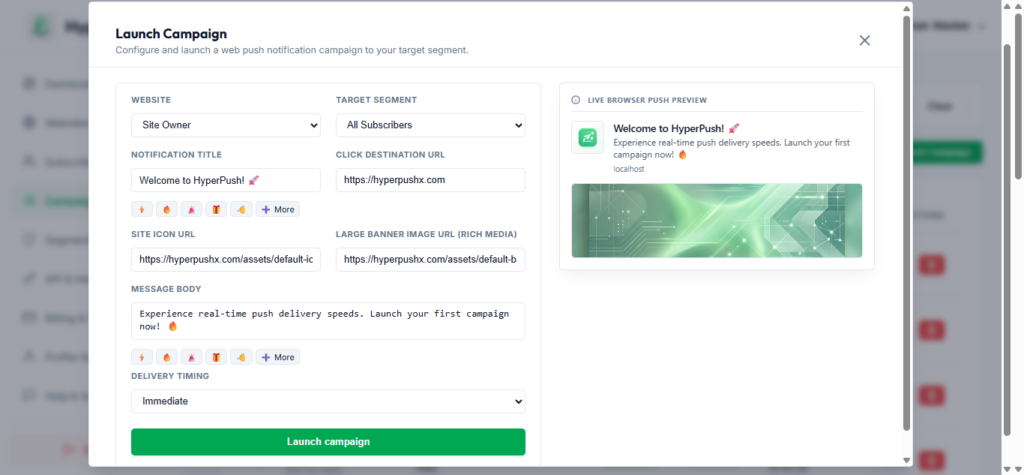
For more advanced control, you can launch a campaign directly from your HyperPush dashboard:
- Log in to hyperpushx.com and go to Campaigns.
- Click Launch Campaign.
- Configure your campaign:
- Website — select the connected site
- Target Segment — choose which subscriber group to send to (e.g., All Subscribers)
- Notification Title and Message Body
- Click Destination URL
- Site Icon URL and Large Banner Image URL (optional, for rich media)
- Delivery Timing — send immediately or schedule for later
- Use the Live Browser Push Preview panel on the right to see exactly how the notification will appear before sending.
- Click Launch campaign.
Step 5: Subscribers Receive the Notification
Once sent, the notification is delivered in real time to every subscribed device/browser. Subscribers will see it as a native browser/OS-level push notification, showing your title, message, and image (if included). Clicking the notification takes them to the Redirect URL / Click Destination URL you specified.