
How To Configure Caching Strategies In Hyper PWA
Caching strategies determine how Hyper PWA stores and serves your website’s resources after they have been visited. Proper cache configuration improves page loading speed, reduces network requests, and enables a better offline experience for your visitors.
Hyper PWA allows you to configure separate caching strategies for three types of resources:
- Pages Cache Strategy
- Static Assets Strategy (CSS, JavaScript, and Fonts)
- Images Cache Strategy
Each resource type can use one of the following caching strategies:
| Strategy | Description |
|---|---|
| Stale While Revalidate (Recommended) | Serves cached content immediately while updating it in the background. |
| Network First | Tries to fetch the latest version from the network before falling back to the cache. |
| Cache First | Uses the cached version first and downloads it only if it is not already cached. |
| Network Only | Always fetches resources from the network without using the cache. |
Configure Cache Strategies
Navigate to:
WordPress Dashboard → Hyper PWA → Core Features → Caching Strateagies
Expand the Caching Strateagies accordion.
Here you can configure the following settings:
- Pages Cache Strategy
- Static Assets Strategy (CSS, JS, Fonts)
- Images Cache Strategy
Each setting provides these options:
- Stale While Revalidate
- Network First
- Cache First
- Network Only
Choose the strategy that best matches your website’s requirements.
After configuring the settings, click Save Settings.
Hyper PWA will automatically regenerate the Service Worker with your updated caching rules.
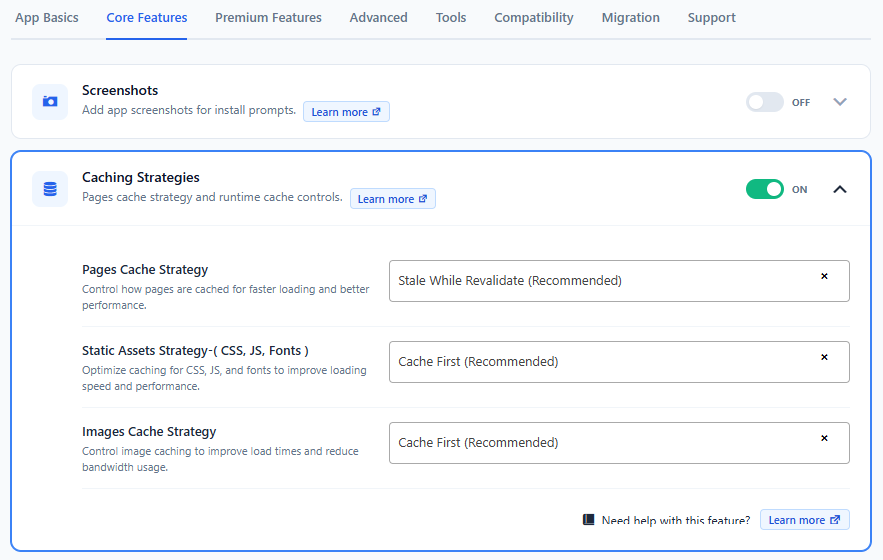
Recommended Configuration
For most websites, we recommend the following configuration:
| Setting | Recommended Strategy | Reason |
|---|---|---|
| Pages Cache Strategy | Stale While Revalidate | Delivers pages instantly while updating them in the background. |
| Static Assets Strategy | Cache First | CSS, JavaScript, and fonts rarely change, making cached versions ideal for faster loading. |
| Images Cache Strategy | Cache First | Improves image loading speed and provides better offline support. |
This combination provides the best balance of performance, reliability, and user experience for most WordPress websites.
Testing Your Cache Strategies
After saving your settings, you can verify that your caching strategies are working correctly.
Method 1: Verify Using the Network Panel
Open your website in Google Chrome.
Press F12 (or right-click and choose Inspect).
Open the Network tab.
Refresh the page several times.
Depending on the selected strategy, you may notice resources being served from:
- Service Worker
- Memory Cache
- Disk Cache
instead of being downloaded from the server every time.
Method 2: Test Offline Mode
Open Developer Tools.
Go to the Network tab.
Enable the Offline option.
Refresh your website.
Expected results depend on the selected strategy.
Pages
If using a caching strategy:
- Previously visited pages continue loading from the cache.
If using Network Only:
- Pages will not load while offline.
Static Assets
If CSS, JavaScript, and fonts were cached previously:
- Styles continue loading.
- JavaScript continues working.
- Fonts remain available.
If using Network Only:
- Static assets fail to load.
Images
Previously cached images continue displaying.
Images using Network Only will not load while offline.
Method 3: Inspect Cache Storage
Open Developer Tools.
Navigate to:
Application → Cache Storage
Expand your website’s cache.
You should see cached resources such as:
- HTML pages
- CSS files
- JavaScript files
- Fonts
- Images
The cached resources will vary depending on the strategies you selected.
Method 4: Verify Background Updates
This test applies to the Stale While Revalidate strategy.
- Open your website.
- Modify some visible content on your website.
- Refresh the page.
You may initially see the previously cached version.
Refresh the page again.
The updated content should now appear because Hyper PWA refreshed the cache in the background after the first request.
This confirms that background cache updates are functioning correctly.
Troubleshooting
Changes Are Not Appearing
If your website continues displaying old content:
- Clear your browser cache.
- Perform a hard refresh using Ctrl + F5 (Windows/Linux) or Cmd + Shift + R (macOS).
- Ensure the updated Service Worker has been installed after saving the Hyper PWA settings.
Offline Mode Is Not Working
If pages or assets are unavailable while offline:
- Visit the page at least once while connected to the internet so it can be cached.
- Verify that you are not using the Network Only strategy.
- Confirm that the Service Worker is active in your browser.
Resources Are Not Being Cached
If resources do not appear under Application → Cache Storage:
- Make sure Hyper PWA is enabled.
- Save the cache settings again.
- Reload the website to allow the Service Worker to cache resources.
- Check the browser console for any Service Worker errors.