
Quick Setup Guide: Configure Hyper PWA And Launch Your First Progressive Web App
Welcome to Hyper PWA!
Hyper PWA makes it incredibly easy to transform your WordPress website into a fully functional Progressive Web App (PWA). Once configured, your visitors can install your website directly on their mobile devices and desktops, enjoy faster page loading through service worker caching, and experience your website like a native application.
This guide walks you through the essential setup required to launch your first Progressive Web App using Hyper PWA.
Before You Begin
Before configuring Hyper PWA, ensure that:
- WordPress is installed and working correctly.
- Hyper PWA plugin is installed and activated.
- Your website uses HTTPS (SSL certificate).
Step 1: Open Hyper PWA Settings
After activating the plugin:
- Log in to your WordPress Dashboard.
- Navigate to:
Hyper PWA → Settings
Here you’ll find all available configuration options organized into different sections.
Step 2: Configure App Basics
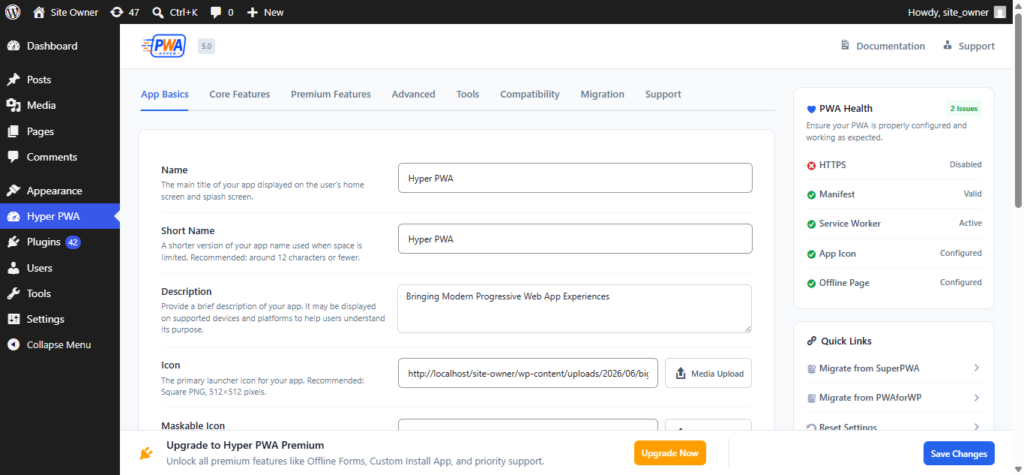
The App Basics section contains the core information that defines your Progressive Web App.
Configure the following fields:
Name
Enter the full name of your application.
Example:
My Business WebsiteThis name appears:
- During installation
- On the splash screen
- In app launcher
Short Name
A shorter version used when space is limited.
Example:
BusinessApp Description
Provide a short description of your website.
Example:
Official website of My Business offering premium services online.Theme Color
Choose your primary brand color.
This color is used for:
- Browser UI
- Splash Screen
- Android status bar
- Installed application theme
Example:
#0057FFBackground Color
Select the splash screen background color.
Usually:
#FFFFFFor
#000000depending on your branding.
Step 3: Upload Application Icons
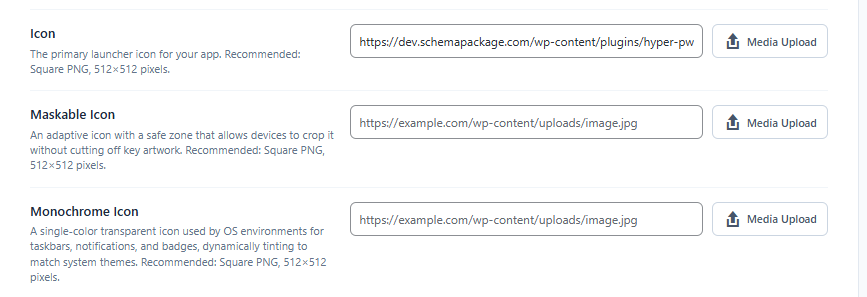
Every Progressive Web App requires icons.
Navigate to the Icons in app basics section.
Upload:
- App Icon (recommended)
- Maskable Icon
- Apple Touch Icon (if available)
Recommended icon sizes:
| Size | Purpose |
|---|---|
| 192×192 | Android Install |
| 512×512 | Splash Screen |
| 512×512 Maskable | Modern Android Devices |
| 180×180 | Apple Devices |
Use PNG format with transparent background whenever possible.
Step 4: Configure Launch Mode
Choose how your application opens after installation.
Available options include:
Standalone
Removes browser UI and gives an app-like experience.
Recommended for most websites.
Fullscreen
Runs without browser interface.
Ideal for kiosk or application-based websites.
Minimal UI
Displays minimal browser controls.
Useful when occasional navigation controls are preferred.
Browser
Launches normally inside the browser.
Also configure:
- Start URL
- Display Mode
- Orientation
- Language
- Text Direction

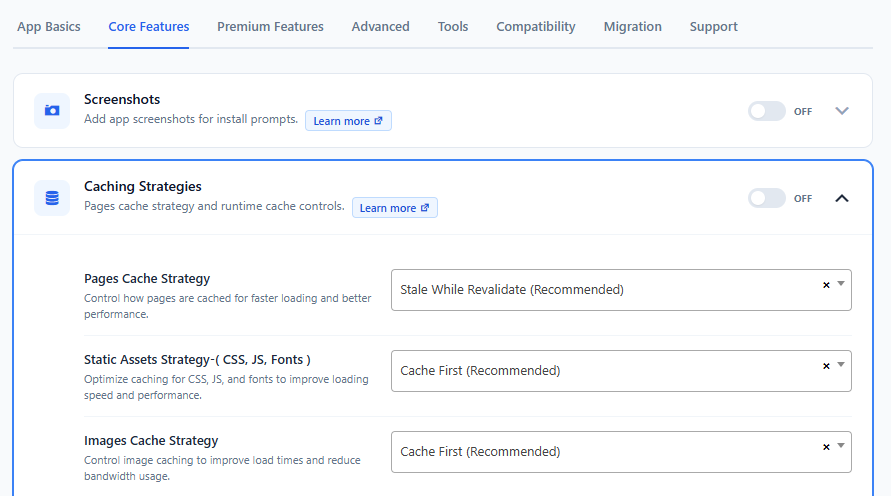
Step 6: Configure Service Worker Caching Strategies
The Service Worker powers your Progressive Web App.
Hyper PWA automatically generates and manages the Service Worker.
Typical options include for Caching Strategies:
- Pages Cache Strategy
- Static Assets Strategy-( CSS, JS, Fonts )
- Images Cache Strategy
The default configuration is suitable for most websites.
Advanced users may customize cache behavior for improved performance.
Step 8: Save Your Settings
Once configuration is complete:
Click
Save Changes
Hyper PWA will automatically:
- Generate the Web App Manifest
- Generate the Service Worker
- Register the Service Worker
- Apply your PWA configuration
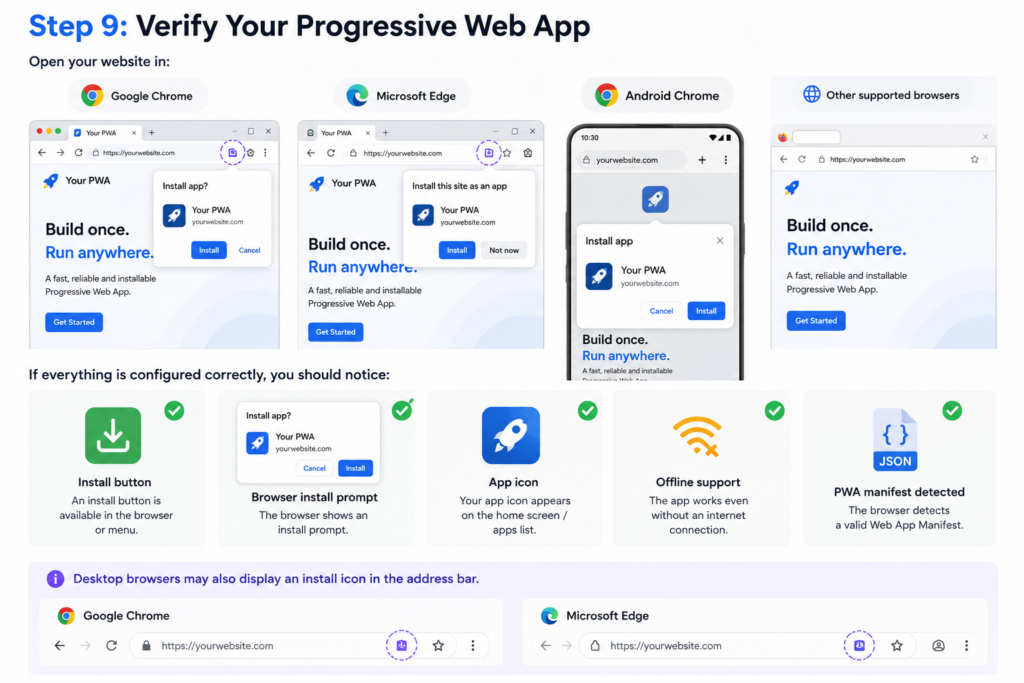
Step 9: Verify Your Progressive Web App
Open your website in:
- Google Chrome
- Microsoft Edge
- Android Chrome
- Other supported browsers
If everything is configured correctly, you should notice:
- Install button
- Browser install prompt
- App icon
- Offline support
- PWA manifest detected
Desktop browsers may also display an install icon in the address bar.
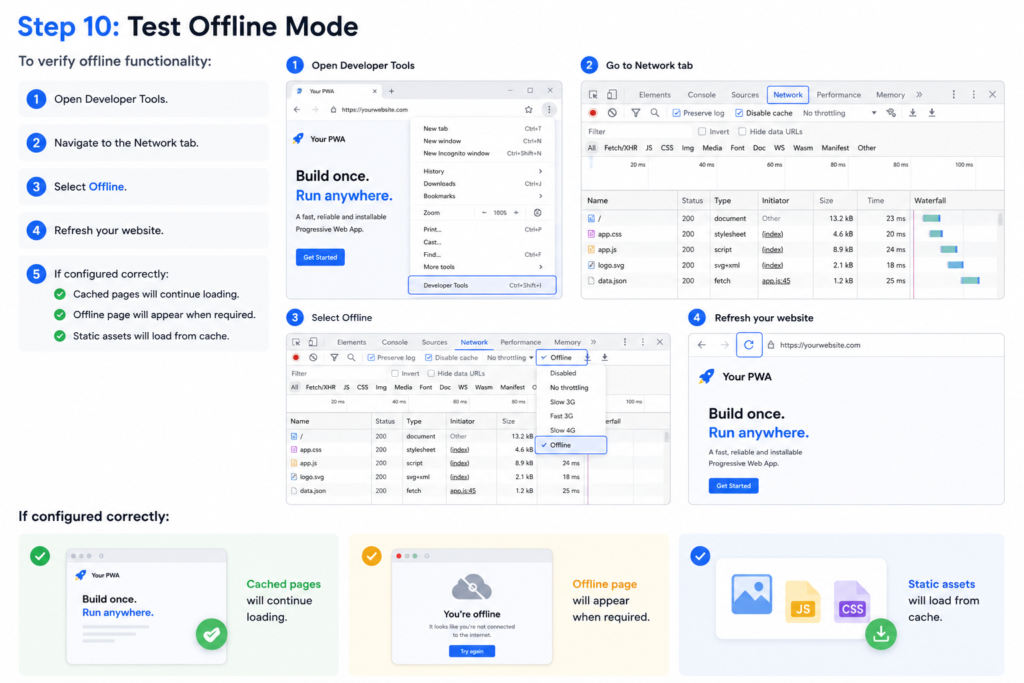
Step 10: Test Offline Mode
To verify offline functionality:
- Open Developer Tools.
- Navigate to the Network tab.
- Select Offline.
- Refresh your website.
If configured correctly:
- Cached pages will continue loading.
- Offline page will appear when required.
- Static assets will load from cache.
Congratulations!
Your WordPress website is now running as a Progressive Web App.
Visitors can now:
- Install your website
- Launch it from their home screen
- Browse cached content faster
- Enjoy an app-like experience
- Access supported content even when offline
Hyper PWA automatically handles the complex PWA technologies behind the scenes, allowing you to focus on your website while providing a modern, installable experience for your users.