How To Upgrade From Hyper PWA Free To Hyper PWA Premium
This guide explains how to upgrade from the free version to Hyper PWA Premium. Whether you’re already using the free plugin or just getting started, the upgrade process is simple and takes only a few minutes.
Why Upgrade to Hyper PWA Premium?
Hyper PWA Premium unlocks advanced Progressive Web App features that help you deliver a faster, more reliable, and app-like experience for your visitors.
With Premium, you get:
- Custom Install App prompts with complete control over the installation experience.
- App Shortcuts that let users quickly access important sections directly from their home screen.
- Smart Analytics to gain deeper insights into your PWA’s performance and user engagement.
- Offline Forms that allow users to submit forms even without an internet connection.
- Bottom Navigation Menu for a modern mobile app navigation experience.
- Multilingual Support to create PWAs for users in multiple languages.
- Android APK Builder to package your PWA as an Android APK for easy distribution.
Upgrade from Free to Hyper PWA Premium
If you are new to Hyper PWA and have not purchased the Premium version before, follow the steps below.
Step 1: Purchase Hyper PWA Premium
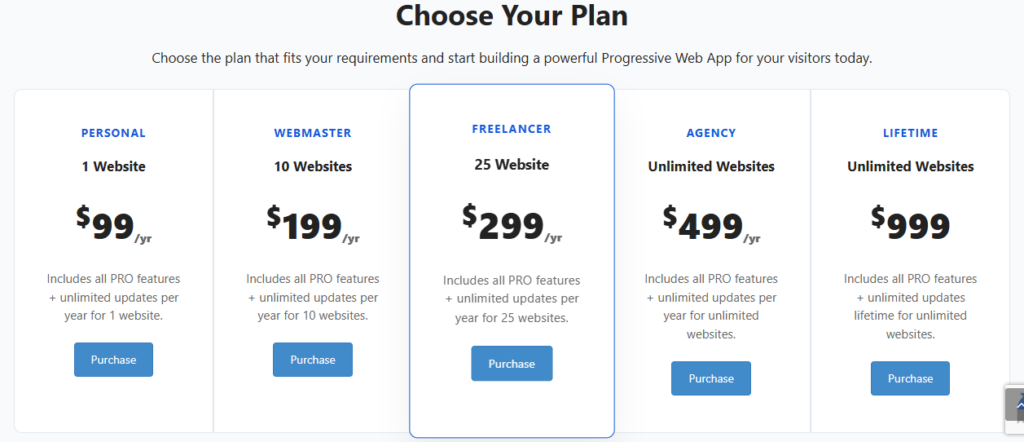
- Visit the official website: https://hyperpwa.com/premium/
- Choose the Hyper PWA Premium plan that fits your needs
- Complete the checkout process
After successful payment, you will receive:
Your account will be automatically created on the Hyper PWA website. From your dashboard, you can download the Premium version ZIP file and access your license key. You will also receive emails containing the download link and license key.
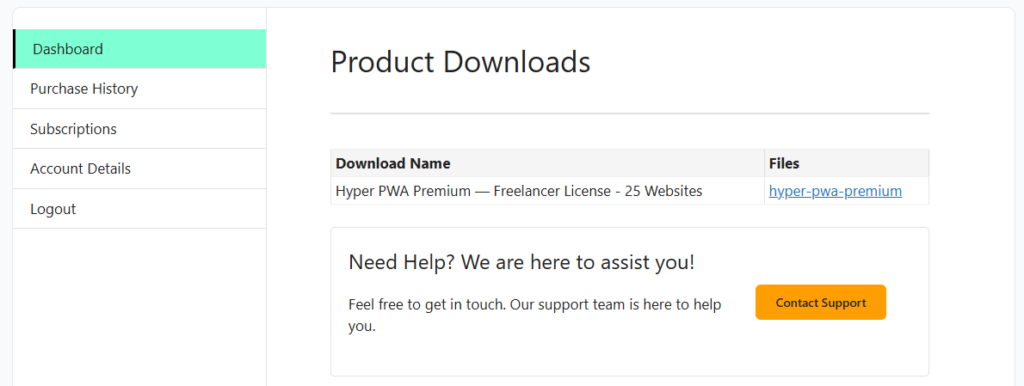
⚠️ Please keep your license key safe. It is required to activate Premium features and receive updates.
Step 2: Install the Premium Plugin
- Log in to your WordPress dashboard
- Go to Plugins → Add New → Upload Plugin
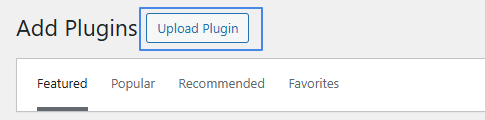
- Upload the downloaded Hyper PWA Premium ZIP file
- Click Install Now, then Activate
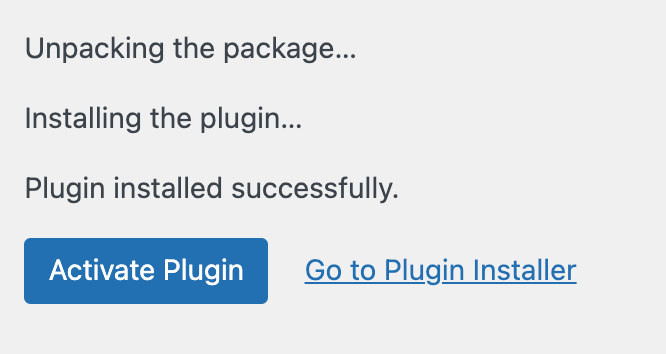
💡 You do not need to uninstall the free version manually. The Premium plugin is designed to work seamlessly with it.
Step 3: Activate Your License Key
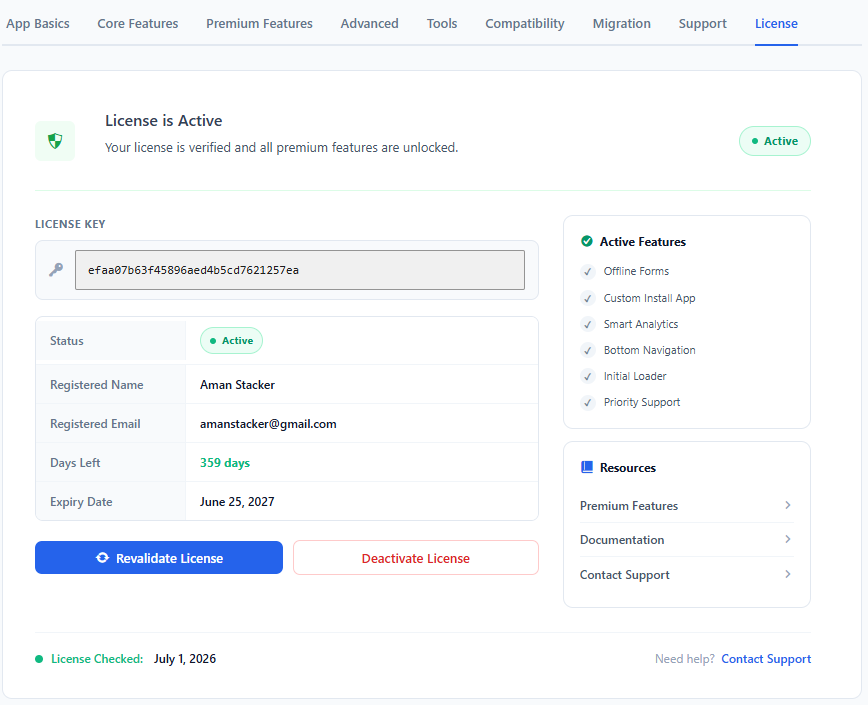
- Go to Hyper PWA → Settings → License
- Enter your license key
- Click Activate License
Once activated, all Premium features will be available immediately.
Frequently Asked Questions
Will upgrading affect my existing free plugin data?
No. All existing settings remain unchanged after upgrading.
Can I downgrade back to the free version?
Yes. You can deactivate the Premium plugin at any time. However, Premium-only features will no longer be active.
Do I need to reconfigure settings after upgrading?
No reconfiguration is required. Premium options simply become available automatically.
Need Help?
If you face any issues during the upgrade process or have questions:
- Visit the documentation section on hyperpwa.com/knowledge-base
- Contact support via the official website
We’re always happy to help you get the best results with Hyper PWA 🚀
Congratulations on upgrading to Hyper PWA Premium!