How To Fix Service Worker And Manifest Errors In Hyper PWA
The Service Worker (sw.js) and Web App Manifest (manifest.json) are the core engines of any Progressive Web App. If either file fails to load or register, browsers will not recognize your site as a PWA, and visitors will not see install buttons.
If you are seeing 404 Not Found or registration errors in your browser console, follow this troubleshooting guide to resolve them.
🛠️ Step 1: Identify the Error in the Browser Console
If your PWA is not working, press F12 (or right-click and select Inspect) to open Developer Tools, and navigate to the Console tab.
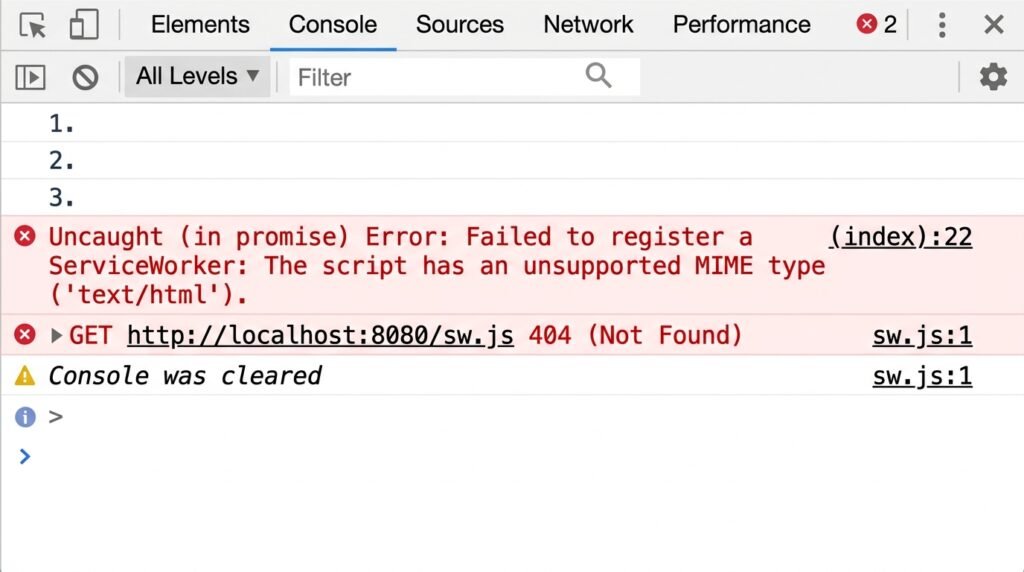
Common service worker errors include:
Failed to register a ServiceWorker: A bad HTTP response code (404) was receivedFailed to register a ServiceWorker: The script has an unsupported MIME type ('text/html')
These errors indicate that the browser requested /sw.js but the server returned a “404 Page Not Found” HTML page instead of the JavaScript code.
⚙️ Step 2: Toggle Your File Serving Method
Hyper PWA offers two different ways to serve your service worker and manifest files.
Go to your WordPress Dashboard, navigate to Hyper PWA > Settings > General, and locate the File Serving Method setting field.
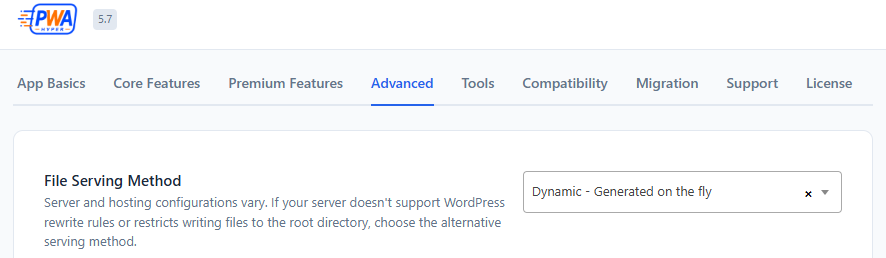
File Serving Method Settings Options
Option A: Dynamic Serving (Recommended for most sites)
- How it works: The plugin serves
sw.jsandmanifest.jsonon the fly using WordPress rewrite rules (redirecting requests toindex.php?sw.js=1). - Requirements:
- Your WordPress Permalinks must NOT be set to “Plain”. Go to Settings > Permalinks and change the setting to Post name.
- If you are using an Nginx web server, ensure your configuration file contains standard index fallback rules (e.g.
try_files $uri $uri/ /index.php?$args;) so that requests for/sw.jsare forwarded to WordPress.
Option B: Static Serving (Best for restrictive host configurations)
- How it works: Hyper PWA compiles and physically writes
hyper-pwa-sw.jsandhyper-pwa-manifest.jsonfiles directly into your website’s root server directory. - Troubleshooting Static Serving:
- If the files do not appear in your root directory after selecting Static, your server has restrictive file permissions.
- Connect to your server via FTP or File Manager and verify that the WordPress root directory allows write permissions (set folder permissions to 755).
⚔️ Step 3: Resolve Push Notification & Script Conflicts
If you have other push notification plugins active (like OneSignal, Webpushr, or Gravitec), they may attempt to register their own service worker files, creating a conflict.
How to Fix Conflicts:
- Go to Hyper PWA > Settings and select the Compatibility tab.
- Toggle the options for active push services (e.g., OneSignal Compatibility) to ON.
- This instructs Hyper PWA to import the third-party push scripts directly inside the PWA service worker, allowing both features to co-exist without overriding each other.