
How To Fix Offline Mode And Cache Problems In Hyper PWA
One of the most powerful features of a Progressive Web App (PWA) is the ability to load offline or in poor network conditions. Hyper PWA achieves this by caching your site’s core files and serving a custom offline page when the visitor loses internet access.
If your site shows the default browser “No Internet” error page (dinosaur page) instead of your custom offline page, or if changes on your website are not reflecting because of stuck PWA caching, follow this troubleshooting guide.
⚙️ Step 1: Configure Caching and Offline Fallback Settings
To manage your PWA caching behaviors, log in to your WordPress Dashboard, navigate to Hyper PWA > Core Features, and expand the Caching Strategies and Pre Caching accordions.
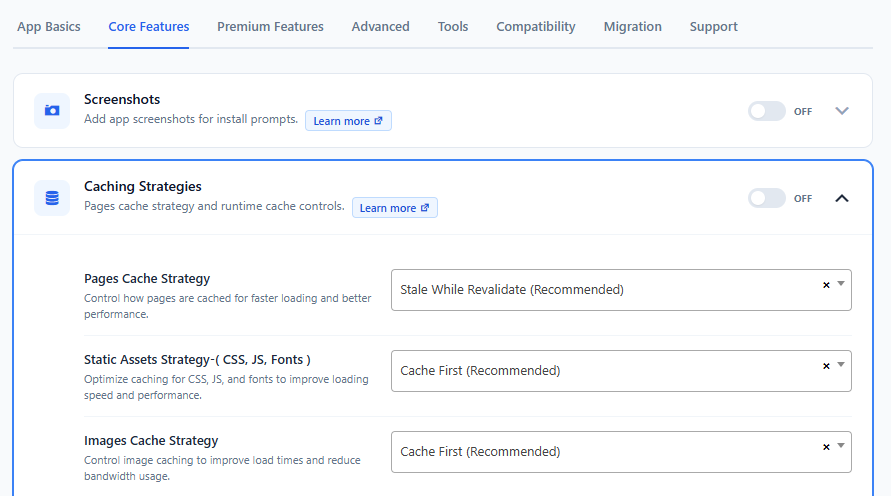
Caching Strategies Reference:
Hyper PWA offers distinct cache strategy controls for Pages, Static Assets (CSS, JS, Fonts), and Images:
1. Pages Cache Strategy
- Stale While Revalidate (Recommended): Loads the page instantly from the local cache first, while silently fetching the latest version from your server in the background and updating the cache. This is the optimal setting for most sites.
- Network First: Attempts to load the freshest content from the server first. If the user’s connection fails or is offline, it falls back to the local cache. Best for sites with very dynamic content (like forums or live counters).
- Cache First: Loads the page from the local cache and doesn’t check the server unless the cache is cleared or updated.
- Network Only: Forces the page to load from the server every time. This disables PWA caching for pages completely.
2. Static Assets Strategy
- Cache First (Recommended): Loads CSS, JS, and font files from the local cache to improve loading speeds. The browser only requests them from the server when you increment your theme/plugin versions.
- Stale While Revalidate & Network First: Useful during active styling/development phases if you need styles to update immediately without caching interference.
3. Images Cache Strategy
- Cache First (Recommended): Caches your uploaded images locally. This dramatically reduces server bandwidth usage and improves load times.
📱 How it Looks on the Frontend
When a user visits your PWA and loses connection, the service worker intercepts the failed network request and renders the pre-cached fallback page instead:

❌ Problem 1: Custom Offline Page Shows Browser Dinosaur Error
If your custom offline page is not rendering when offline, check the following:
1. Incomplete Pre-caching of the Offline Page:
For an offline page to work, the browser must have downloaded it to its local cache while the user was online.
- Verify that you visited the website at least once while connected to the internet before testing offline mode.
- Verify that the selected Offline Page exists and loads properly in standard browser views.
2. Large File Sizes on the Offline Page:
Avoid placing large images, YouTube video embeds, or external third-party API scripts on your offline page. If the page is too heavy or contains resources that are not pre-cached, the browser will refuse to load the cached page.
- Keep it simple: Use a minimalist brand logo, simple styled text, and an offline message.
❌ Problem 2: Stuck Cache (Website Changes Not Reflecting)
PWA caching is extremely fast because it bypasses standard server requests. However, this can sometimes cause updates (like publishing a new layout or changing settings) to not show up immediately for return visitors.
How to Force Cache Updates:
- Exclude Offline Page from Optimization Plugins: If you use WP Rocket, LiteSpeed Cache, or Autoptimize, add your offline page slug (e.g.,
/offline/) to the Never Cache URL settings of those plugins. If optimization plugins cache the offline template dynamically, the service worker cannot serve it correctly. - Increment Force Update Version: Go to Hyper PWA > Advanced and increase the Force Update version input field (e.g., from
1.0to1.1).- What it does: This triggers an immediate updates verification in return visitor browsers, forcing the old service worker to unregister, download the fresh files, and activate the updated service worker.
- Purge WordPress Caching: Clear the dynamic cache inside your WordPress server-side optimization plugins so that they serve the fresh JS/CSS payloads to the service worker.