How To Configure Legacy Icons In Hyper PWA
Legacy Icons allow you to upload application icons in multiple fixed sizes for maximum compatibility across older Android devices, browsers, and platforms that still rely on traditional Web App Manifest icon sizes.
While modern browsers can automatically generate many icon sizes from a high-resolution image, providing dedicated legacy icons ensures your Progressive Web App displays the best possible icon on all supported devices.
Why Use Legacy Icons?
Uploading legacy icons helps your PWA:
- Improve compatibility with older Android devices.
- Support legacy browsers and launchers.
- Display crisp icons without scaling artifacts.
- Provide optimized icons for different screen densities.
- Ensure proper installation across a wider range of devices.
Note: If a specific icon size is not uploaded, modern browsers may automatically scale another available icon. However, uploading the correct size provides the best visual quality.
Opening Legacy Icons Settings
- Log in to your WordPress Dashboard.
- Navigate to:
Hyper PWA → Settings- Open the Core Features tab.
- Expand the Legacy Icons accordion.
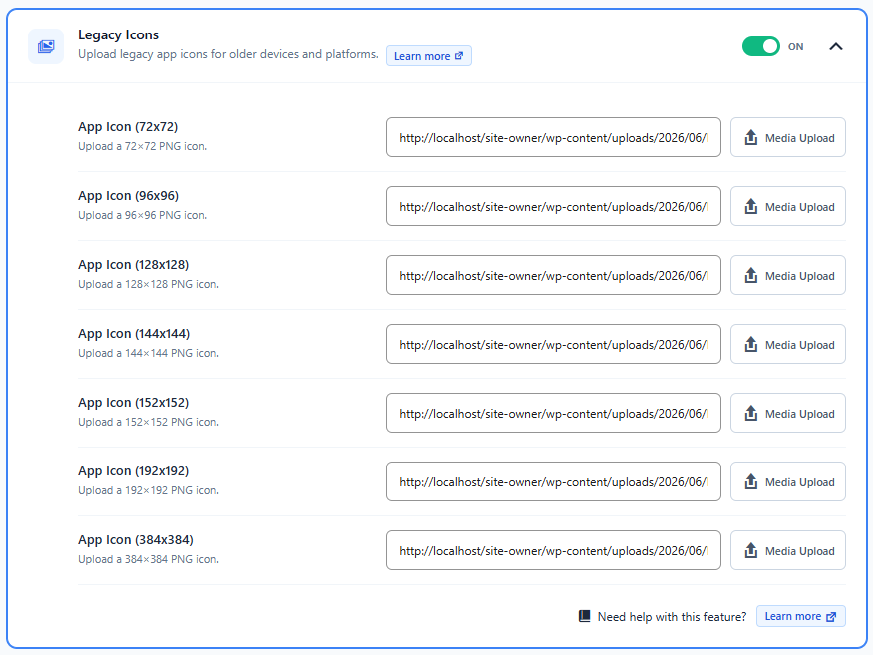
Available Icon Sizes
Hyper PWA supports uploading the following icon sizes.
| Icon Field | Recommended Size | Purpose |
|---|---|---|
| App Icon (72×72) | 72 × 72 px | Older Android launchers |
| App Icon (96×96) | 96 × 96 px | Medium-density Android devices |
| App Icon (128×128) | 128 × 128 px | Legacy Chrome support |
| App Icon (144×144) | 144 × 144 px | High-density Android devices |
| App Icon (152×152) | 152 × 152 px | Tablet and legacy launcher support |
| App Icon (192×192) | 192 × 192 px | Standard Android home screen icon |
| App Icon (384×384) | 384 × 384 px | High-resolution devices |
How To Upload Legacy Icons
For each icon field:
- Click Upload Image.
- Select an existing image from the Media Library or upload a new one.
- Choose an image that exactly matches the required dimensions.
- Repeat the process for all available icon sizes.
- Click Save Settings.
How To Verify Legacy Icons
Method 1: Check the Web App Manifest
- Open your website in Google Chrome.
- Press F12 to open Developer Tools.
- Open the Application tab.
- Select Manifest from the sidebar.
- Scroll to the Icons section.
You should see all uploaded icon sizes listed in the manifest.
Method 2: Inspect the Manifest File
Open your manifest file in the browser.
You should find entries similar to:
"icons": [
  {
    "src": "icon-72x72.png",
    "sizes": "72x72"
  },
  {
    "src": "icon-96x96.png",
    "sizes": "96x96"
  },
  {
    "src": "icon-128x128.png",
    "sizes": "128x128"
  },
  {
    "src": "icon-144x144.png",
    "sizes": "144x144"
  },
  {
    "src": "icon-152x152.png",
    "sizes": "152x152"
  },
  {
    "src": "icon-192x192.png",
    "sizes": "192x192"
  },
  {
    "src": "icon-384x384.png",
    "sizes": "384x384"
  }
]
If these entries are present, Hyper PWA is correctly exposing your legacy icons.
Troubleshooting
Icons are not updating
Try the following:
- Clear your browser cache.
- Clear any WordPress caching plugin.
- Clear your CDN cache if applicable.
- Remove and reinstall the PWA on your device.
Summary
The Legacy Icons feature in Hyper PWA allows you to upload multiple icon sizes for broader compatibility with older devices and browsers. By providing dedicated icons for each supported size, your PWA can display sharp, professional-looking app icons across a wide range of Android launchers, browsers, and installation environments. Properly configured legacy icons improve both the appearance and compatibility of your Progressive Web App.