How to Configure iOS and Safari Settings in Hyper PWA
Unlike Android devices, iPhones and iPads (iOS) do not show an automatic “Install” button on websites. Instead, visitors must manually tap the browser’s Share button and select “Add to Home Screen”.
Hyper PWA makes this process incredibly easy for your visitors by showing them a simple step-by-step guide on how to add your website to their phone’s home screen.
⚙️ How to Configure the Settings
To get started, log in to your WordPress Dashboard, go to Hyper PWA > Core Features in the menu, and scroll down to the iOS & Safari section.
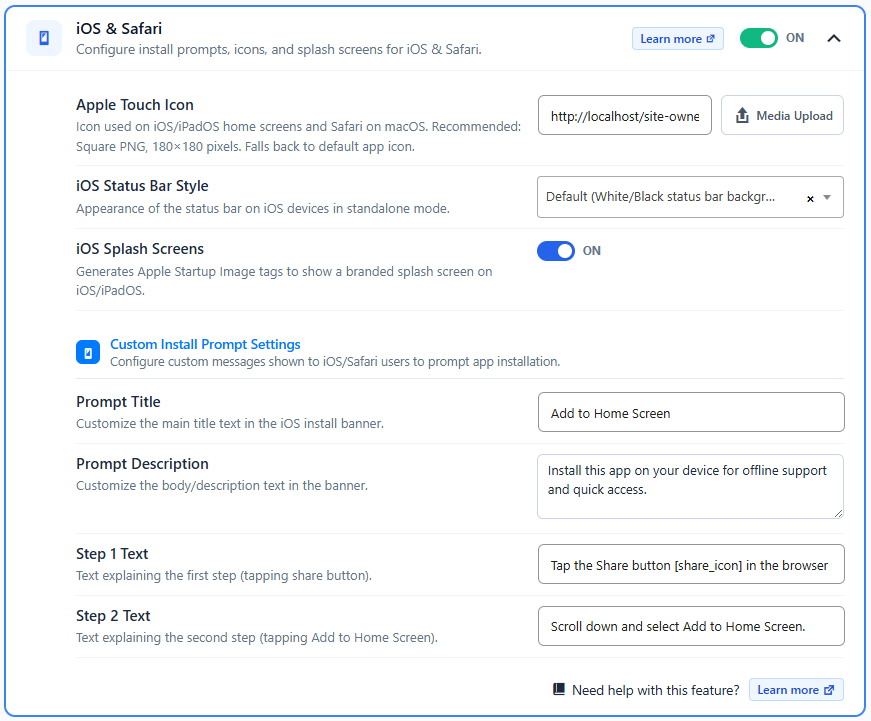
Step 1: Turn On the Toggle in the Accordion
This will show a friendly banner at the bottom of the screen specifically for iPhone and iPad users, guiding them on how to install your app.
Step 2: Upload Your App Icon
Under the Apple Touch Icon field, upload your logo or app icon:
- Recommended Format: A square PNG image, 180×180 pixels in size.
- Where it appears: This is the icon users will see on their iPhone or iPad home screen after installing your app.
- Note: If you leave this blank, the plugin will automatically use your main PWA icon.
Step 3: Choose Your Status Bar Color
When users launch your app from their home screen, the top bar of the device (where the time and battery status are shown) can be customized:
- Default: Standard white or black background.
- Black: Sets a solid black status bar background.
- Black Translucent: Makes the top bar completely transparent. Your website’s header will stretch all the way to the top of the screen under the time and battery icons, giving it a premium full-screen look.
Step 4: Enable Branded Splash Screens
Check the box for iOS Splash Screens.
- What it does: When users click your app icon, this shows a clean loading screen with your logo and background color while the app opens, instead of a blank white screen.
Step 5: Customize the Text Guide
If you want to translate the instructions into a different language or customize the message, you can edit the text fields under the Custom Install Prompt Settings section:
- Title: The main heading (e.g., “Install Our App”).
- Description: A short sentence explaining why they should install it (e.g., “Get offline access and faster loading times”).
- Step 1 & Step 2 Text: Clear directions telling them to click the Share button and select Add to Home Screen.
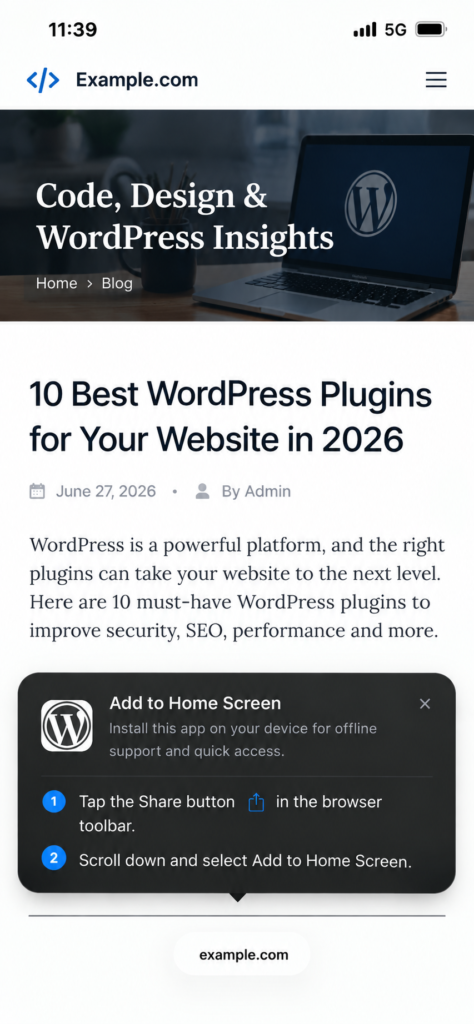
📱 How it Looks on iPhones
Once enabled, your mobile visitors using Safari will see a helpful guide banner at the bottom of their screen showing exactly what to tap.
🛡️ Smart Duplicate App Prevention
Unlike Android, Apple iOS treats every “Add to Home Screen” action as a separate bookmark. If a visitor taps “Add to Home Screen” multiple times, iOS creates duplicate app icons on their device.
Hyper PWA solves this automatically:
- Automatic Memory: Once a visitor adds your app to their iPhone or iPad, Hyper PWA detects it and automatically hides all install prompts and buttons when they revisit your website in Safari.
- Clean Browsing: Visitors who already have your app will never be bothered by repetitive installation requests or end up with duplicate app icons on their Home Screen.
🔘 How Manual Install Buttons Work on iOS (Shortcode & Blocks)
If you are using the Install Button Shortcode (), Gutenberg Block, or Elementor Widget on your pages:
- On Safari: The button is visible to visitors who haven’t installed your app yet.
- When Tapped: It immediately opens the step-by-step iOS guidance card directing them to tap Share and select Add to Home Screen.
- If Dismissed: If a visitor taps the Close (
×) button on the instructions card without adding the app, the Install Button remains on the page so they can install whenever they are ready. - Once Installed: After the app is added to the Home Screen, the button automatically stays hidden on future Safari visits.
💡 Good to Know (Common Questions)
- Why isn’t the guide showing on Chrome for iOS?
Apple restricts PWA installations to the Safari browser on iOS. If a visitor uses Chrome or Firefox on their iPhone, the banner will politely ask them to open your site in Safari to install it. - When can iOS users receive push notifications?
iPhones support push notifications only after the user has installed your app to their Home Screen. Once installed, they can open the app and accept notification requests. - Can visitors accidentally install the app multiple times on iOS?
No. Hyper PWA automatically recognizes when the app has already been added to the device. Once installed, all install buttons and prompts are suppressed on Safari browser visits, preventing duplicate app icons. - What happens if a visitor closes the iOS installation guide?
Automatic Prompt: If a visitor dismisses the automatic bottom prompt by tapping the Close (`×`) button, Hyper PWA applies a 7-day courtesy window. It will not annoy the visitor on every page reload, and will gently reappear after 7 days. Manual Install Button: If a visitor opened the guide by clicking an on-page Install Button and then closes it, the button remains active on the page so they can click it again anytime. - What happens when a user opens the app from their iPhone Home Screen?
The app launches in **full-screen standalone mode** just like a native iOS app (browser toolbars are removed). In this mode, all installation buttons and banners are completely hidden.